
User guide
Navigating the interface
Side menu
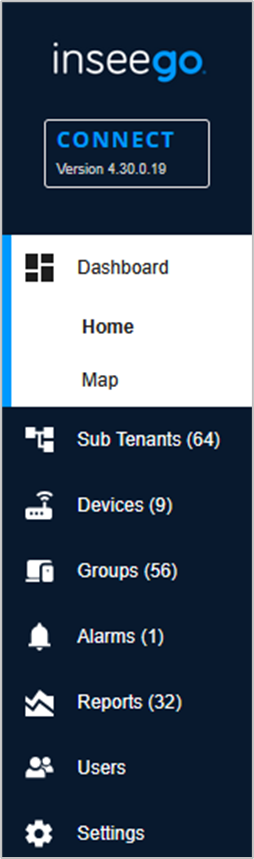
Use the side menu on the left of the page to access each page in the Inseego Connect interface. You can use this menu to jump to other pages. The current topic is highlighted in white and the page is indicated by bold text.
NOTE: Feature availability varies according to the product you purchased.
Header

The name of the tenant is displayed on the left side, below the header.
On the right side of the header, there are two icons:
- Click on the alarms icon to view alarms and failed webhook calls and dismiss them. Click on an alarm/webhook call name for details. When you click Close, the popup closes, and the alarm/webhook call remains listed. When you click Dismiss, the alarm/webhook call is removed from all alarm lists.
- Click on the person icon to change the tenant (if you belong to multiple tenants), change your password, or log out of Inseego Connect.
Help
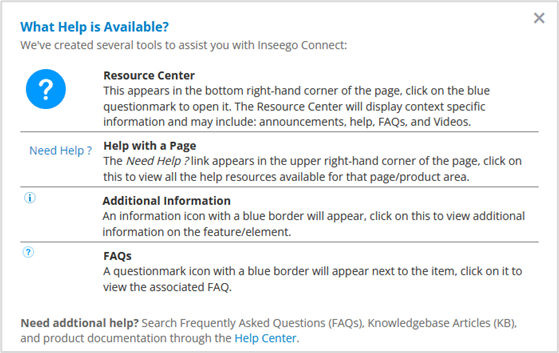
 Click on the help icon on the bottom left of any page to view a variety of tools available to assist you.
Resource center
 Click on the blue question mark on the bottom right of any page to view the resource center or get help with the current page.