
User guide
Logging in
1. To login to Inseego Connect after the initial sign-up process, go to connect.inseego.com. The interface login screen appears.
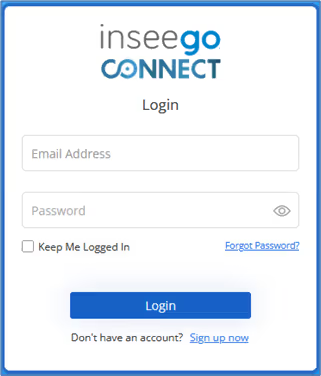
2. Enter your password.
3. If you check Keep Me Logged In, you will not need to provide another verification code for 30 days.
4. Click Login. The Email Verification screen appears.
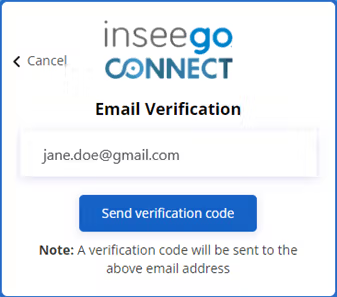
5. Click Send verification code. You will receive a verification code to complete your login via email. This multi-factor authentication (MFA) adds an extra layer of security for your account. If you don’t receive an email, check your spam folder, or add noreply@inseegoconnect.com to your email allow list.
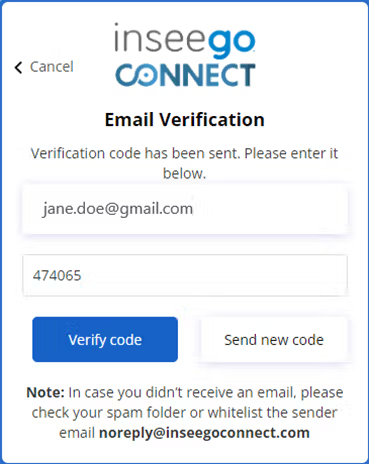
6. Enter the verification code from your email and click Verify code. This code is valid for twenty minutes, if it is no longer valid, click Send new code.

7. Click Continue.
8. If you are a user on more than one tenant, you are prompted to select a tenant.
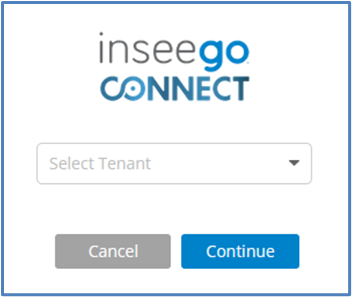
9. Select a tenant from the dropdown and click Continue.